Add a Camera
Note: If the XV Gateway was on a different location before, ensure the XV Gateway has been deleted from the previous location on Dealer Admin before adding to the new location.
Refer to Delete an XV Gateway below for more information.
There are two types of cameras that can be added to the XV Gateway:
-
Auto-Discovered Cameras: The cameras are automatically discovered if they exist on the same subnet as the XV Gateway.
-
Manually Added Cameras: The cameras are outside of the XV Gateway subnet and can be manually added with the camera’s IP Address or RTSP stream.
Refer to the sections below for details on how to add both types of cameras to an XV Gateway.
Auto-Discovered Cameras
-
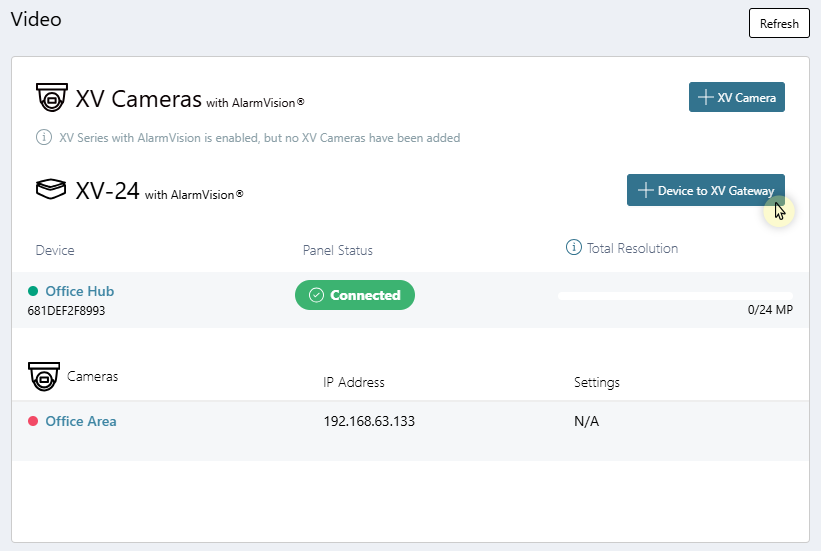
In the XV Camera with AlarmVision® section, select + Device to XV Gateway to add a camera to an XV Gateway.
-
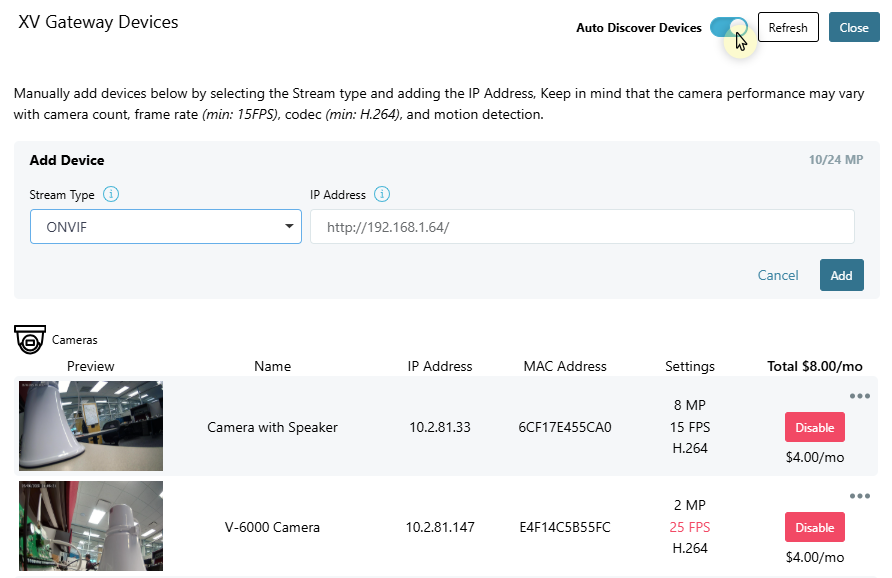
If not already on, toggle Auto Discover Devices ON. Cameras that already exist on the same subnet as the XV Gateway automatically display in the camera list.
-
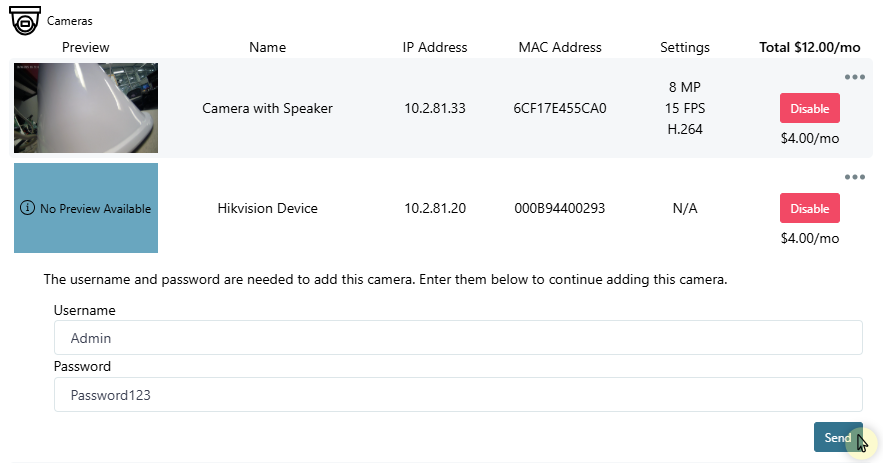
Select Enable to add the camera to the XV Gateway.

-
You will be prompted for a username and password. Enter the information, then select Send.
-
The camera view displays a preview of the field of view. Select Close

Manually Added Cameras
-
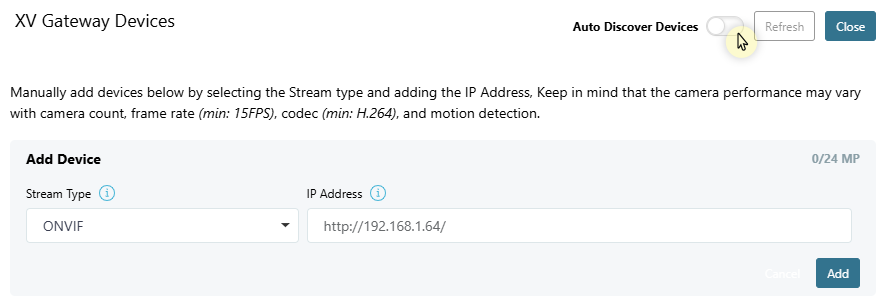
Cameras that are not connected to the same subnet as the XV Gateway need to be manually added. To manually add a camera, toggle Auto Discover Devices off or select Add Manually.

-
Select ONVIF or RSTP Stream from the drop-down menu and enter the corresponding information. Then, select Add.
.png?cb=991f5170a93b34560c18a4007ccc9d35)
-
You will be prompted for a username and password. Enter the information, then select Send.
-
Once you have added the camera to the XV Gateway, select Close.
.png?cb=beb291688fbcbb01f87c2488c3518c02)
For optimal performance, DMP recommends that the total resolution of the added cameras not exceed the XV Gateway model limit (ex. XV-24 should not exceed 24 MP). All cameras should have a frame rate of 15 FPS or less and a codec:H.264. Performance may vary based on number of cameras, framerate, codec, and motion detection.
Add a Camera as an Audio Device
A camera can be added as both a camera and as an audio device in Dealer Admin to allow access to the camera’s internal microphone and speaker. Refer to the sections below for details on how to add a camera as an audio device.
Add a New Camera as an Audio Device
A camera will first need to be associated with the XV to add it as an audio device. To add a camera as a new camera and new audio device at the same time, complete the steps below:
-
In the XV Camera with AlarmVision® section, select + Device to XV Gateway.
-
If not already on, toggle Auto Discover Devices ON. Cameras that already exist on the same subnet as the XV Gateway automatically display in the Camera and Audio Device lists.
-
Locate the camera you want to add in Cameras. Select Enable to add the camera to the XV Gateway.
-
You will be prompted for a username and password. Enter the information, then select Send.
-
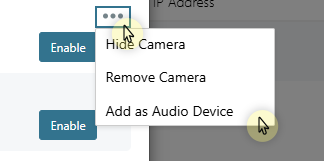
Locate the same camera in Audio Devices. Select More. Select Add as Audio Device to add the camera as both device types.
-
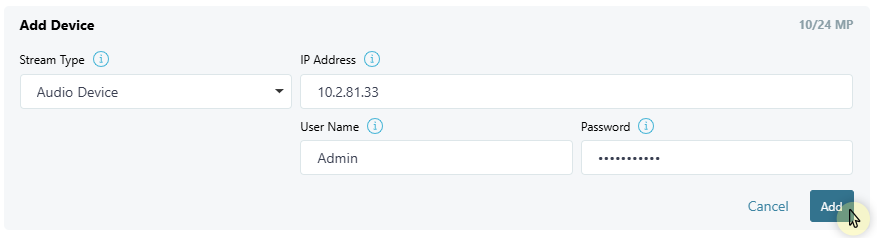
You will be prompted for a username and password. Enter the information, then select Send.
-
Select Close.
Add an Existing Camera as an Audio Device
If a camera is already associated with the XV Gateway, but also needs to be added as an audio device, follow the steps below:
-
In the XV Camera with AlarmVision® section, select + Device to XV Gateway.
-
If not already on, toggle Auto Discover Devices ON. Cameras that already exist on the same subnet as the XV Gateway automatically display in the Camera and Audio Device lists.
-
Locate the camera you want to add. Select More. Select Add as Audio Device to add the audio device to the XV Gateway.
-
You will be prompted for a username and password. Enter the information, then select Send.
-
Select Close.
Edit a Camera
-
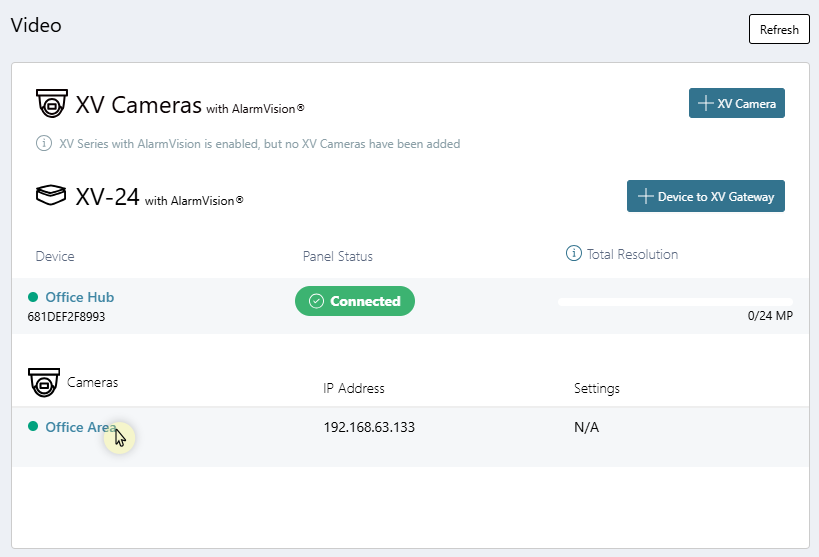
Select the camera from the XV Gateway with AlarmVision® section.
-
Enter a name and description for the camera.

-
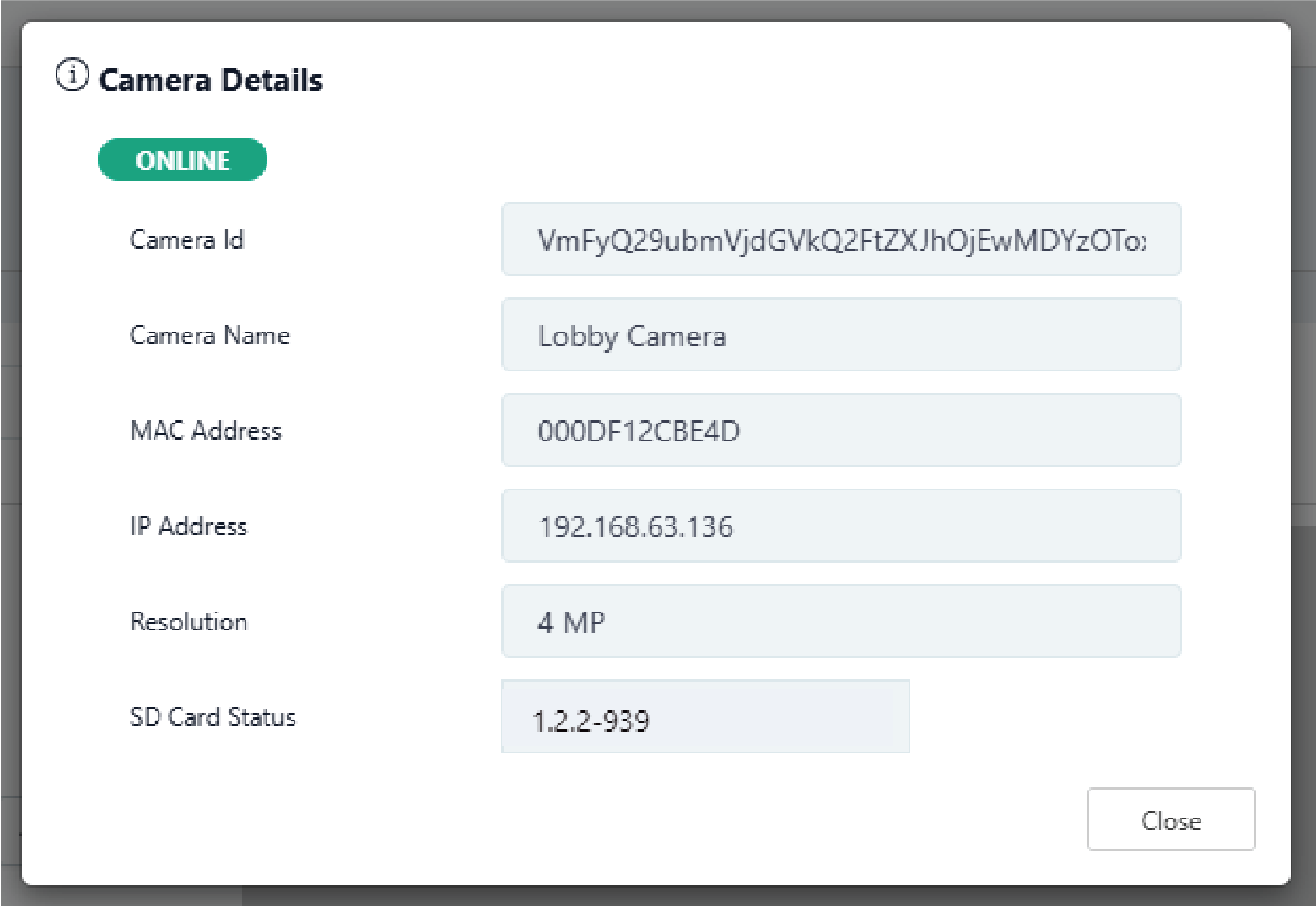
Select Camera Details in the top right corner to view the following camera information:
-
Camera Status
-
Camera Name
-
Camera Description
-
MAC Address
-
IP Address
-
Resolution
-
Username
-
Password
-
-
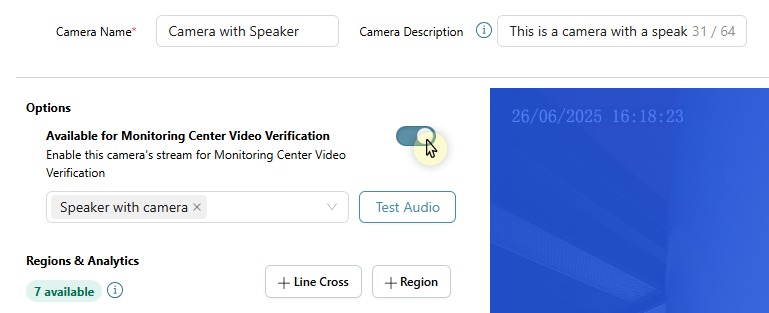
In Options, enable camera feed for Monitoring Center Video Verification (if already enabled for the location).
Note: To enable Monitoring Center Video Verification for your location, go to Location Groups and select the Location Name. In Location Information, select Edit at the top of the screen. Scroll down to Video, and select the checkbox next to Monitoring Center Video Verification to enable this feature. Select Save at the top of the screen.
-
Select Save in the top right corner to apply any edits to the camera.
Note: Selecting Save exits the Edit Camera page.
Refer to Configure Detection Regions below to configure the camera before exiting the page.
Regions & Analytics Settings
If your camera has Regions & Analytics settings, you can add up to four regions and four lines. Regions and lines allow your camera to detect motion. If your camera does not have at least one region or line set up, it will not detect motion. You can also add analytics to your camera.
Regions are sections of an area where cameras detect motion. Motion that occurs outside a region is not detected. For example, a region covering the doorway to a room only detects motion in the doorway.
Lines are sections of a room where motion has to cross for the camera to detect motion. For example, a line at the doorway detects motion if someone crosses the line at the doorway.
Analytics allow your camera to detect people, detect animals, and detect vehicles. When analytics are enabled, your camera records a 30-second clip on motion. The clip is stored in Events with information about what was detected, when, and where.
Create a Region
-
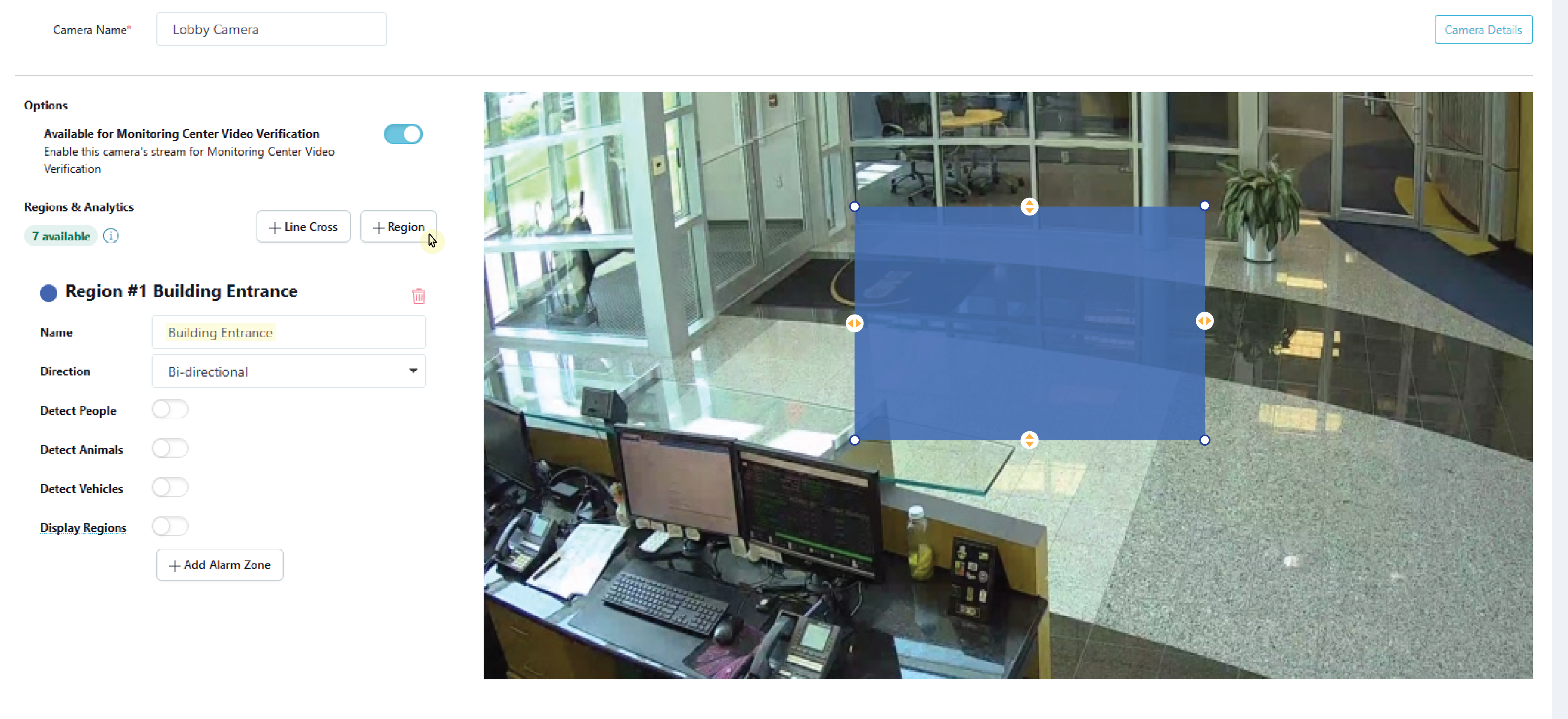
On the Edit Camera page, scroll down to Regions & Analytics and select + Region. A box appears in the middle of the camera view screen.
-
Select and drag the box on the camera’s field of view to define the desired detection region. The white circles on the corners can be used to manipulate the region by clicking and dragging them. You may also select anywhere on a line and a white circle appears that allows the manipulation of the detection region.
-
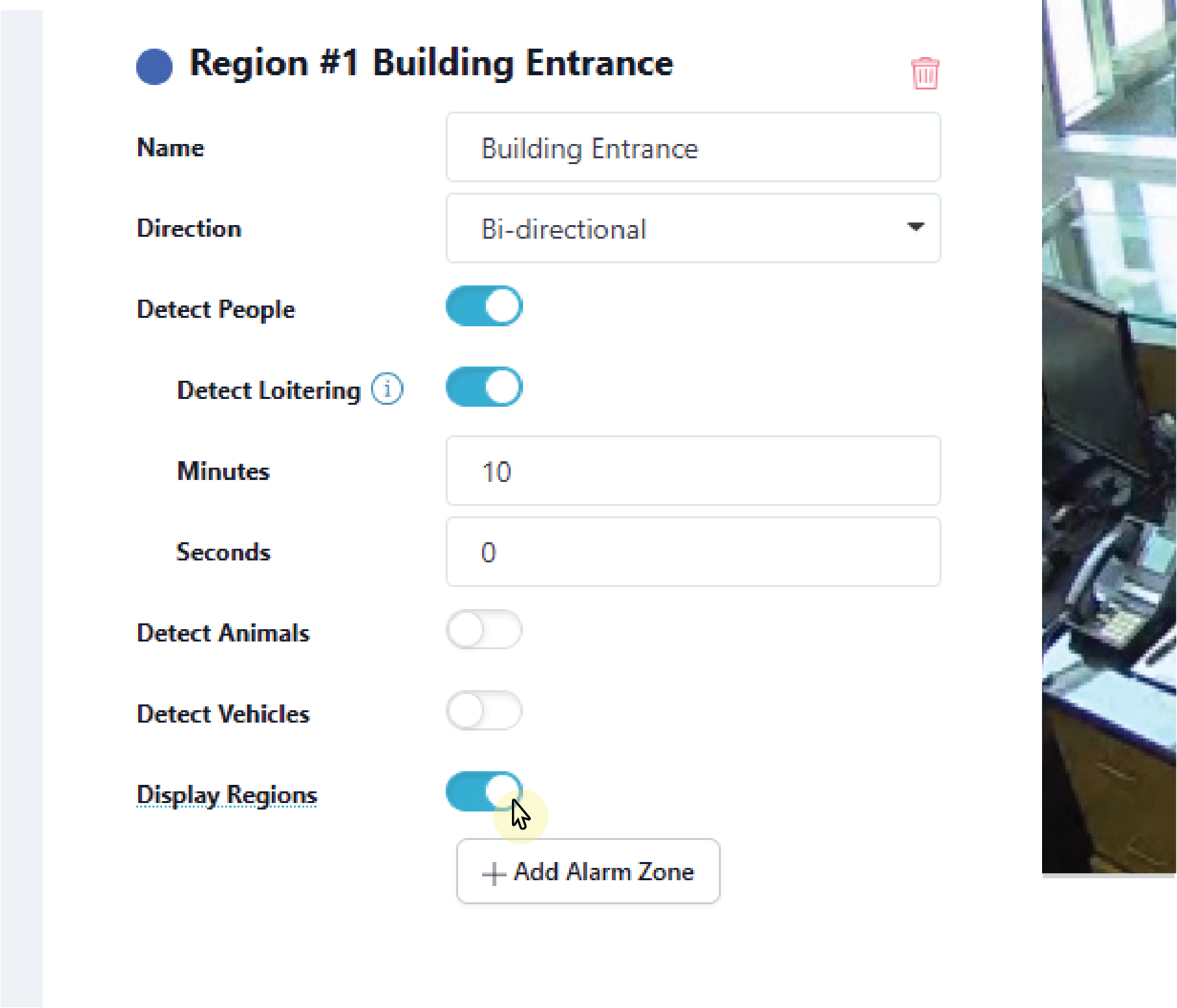
Give the region a Name.
-
In the drop-down menu, select one of the following directions you want to monitor if a person, animal, or vehicle moves in a direction that is a part of a programmed region:
-
Enter—Motion has to cross into the detected region, following the arrows pointing inward.
-
Exit—Motion has to cross out of the detected region, following the arrows pointing outward.
-
Bi-Directional—Motion can cross the box in any direction.
-
.png?cb=70a9dc88b3cfa311fda4bcec82c3c76a)
-
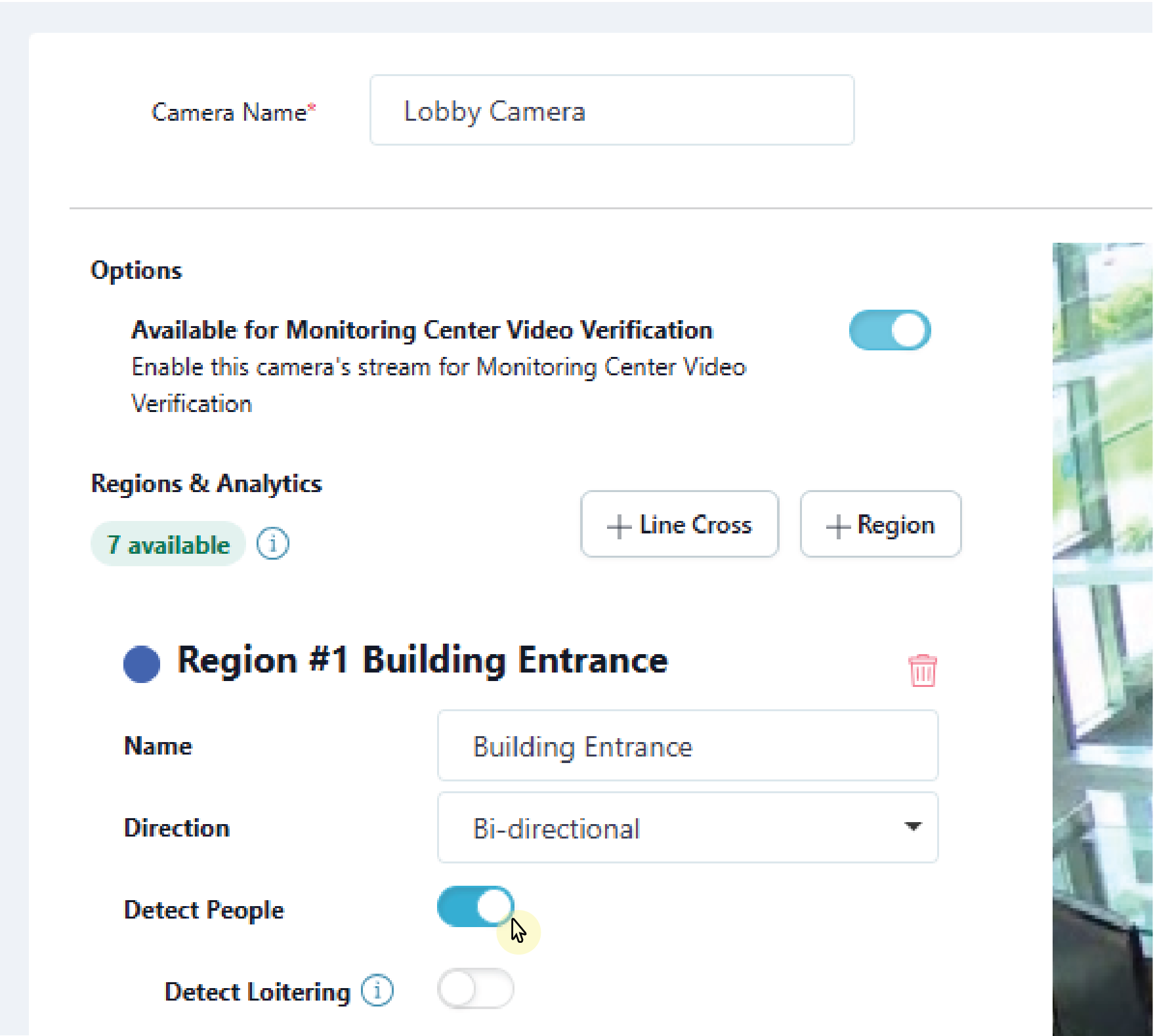
Select whether you want the region to detect People, Animals, Vehicles, or any combination of the three.
-
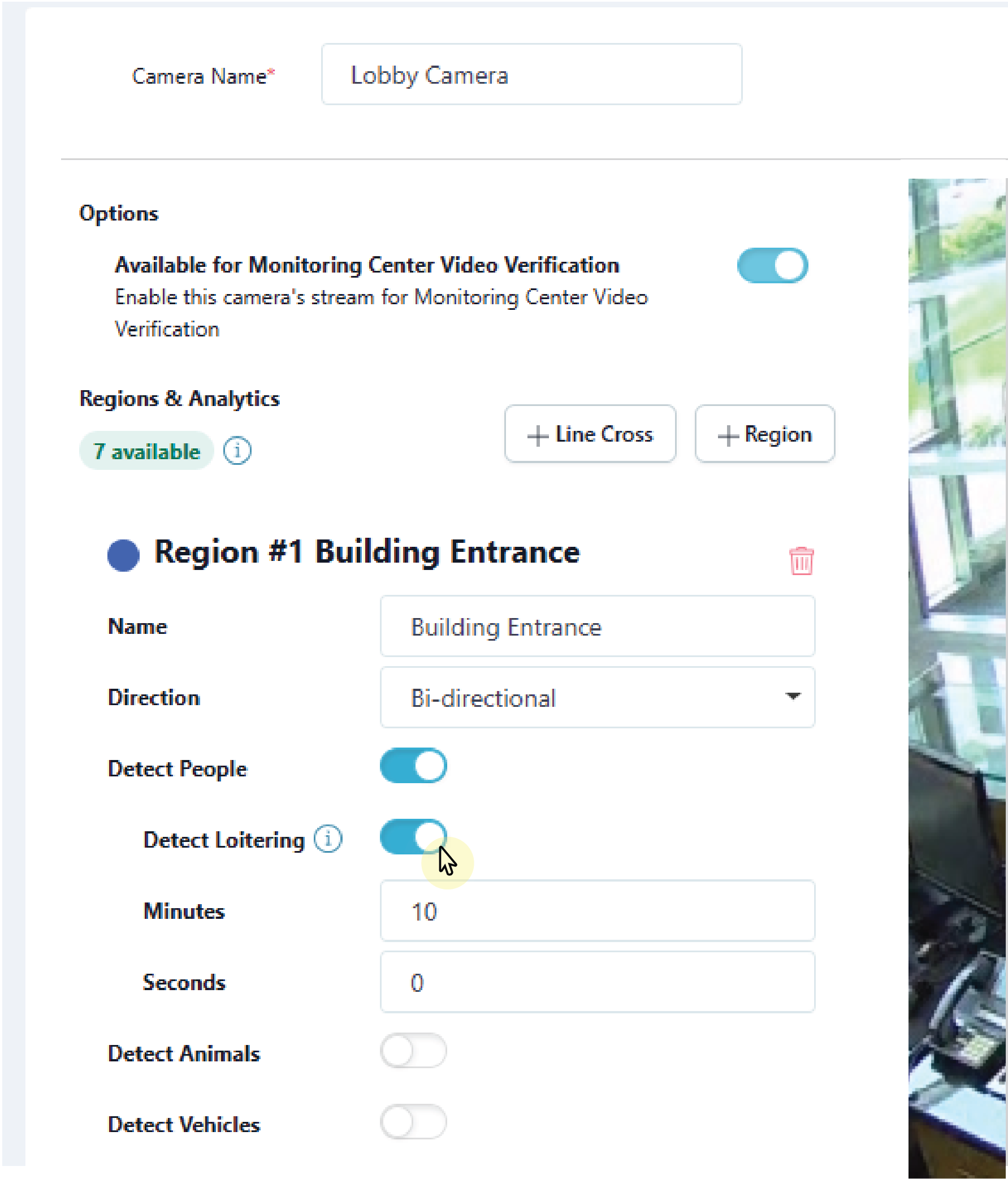
Select whether you want the region to detect Loitering for people or vehicles and enter a value into the supported time fields to dictate the amount of time required before the loitering alert is triggered.
-
Select Display Regions if you want the configured detection regions to show up on event previews in Virtual Keypad.
-
To add additional regions, repeat steps 1-6. Select Save to apply changes and exit the Edit Camera page. This saves the detection regions and any camera adjustments made previously.
Create a Line
-
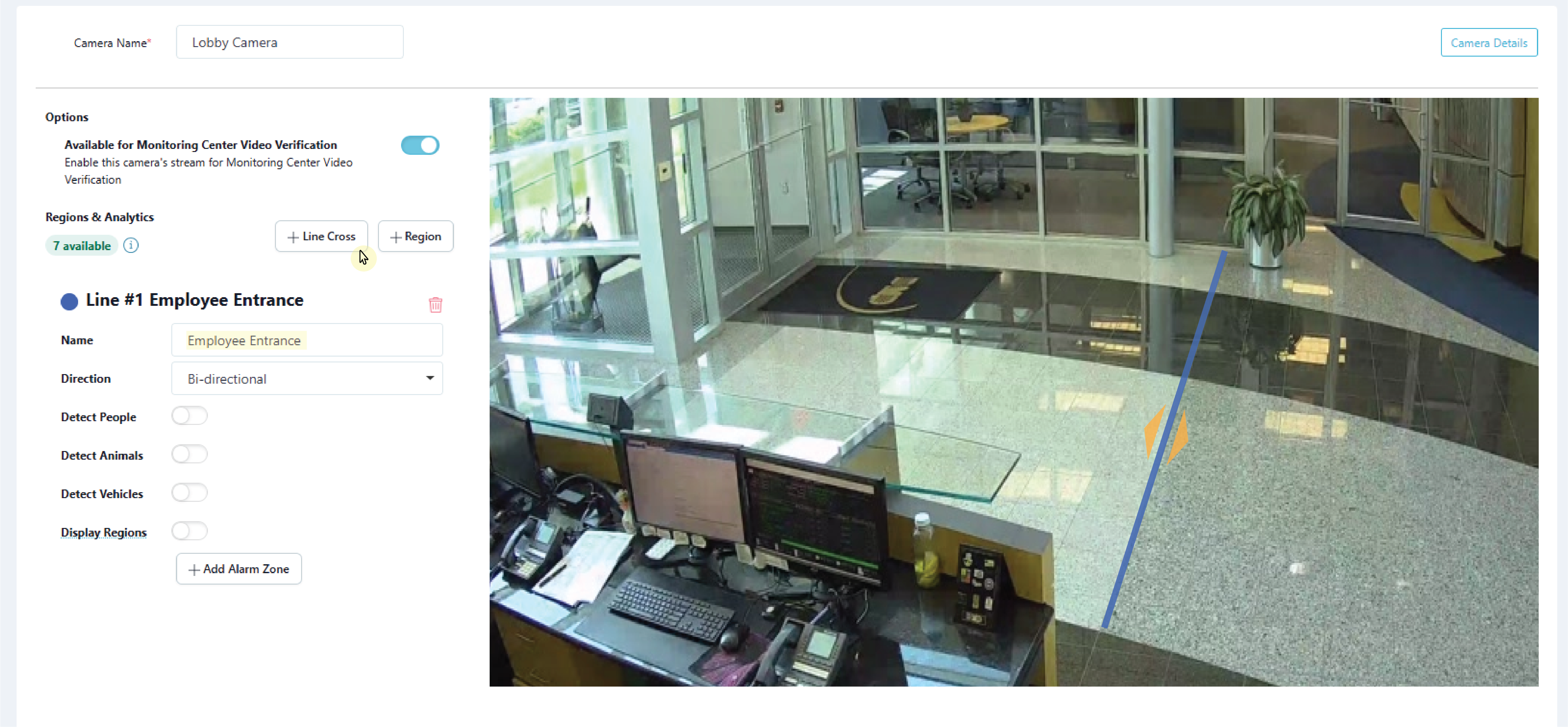
In Regions & Analytics, select + Line Cross. A line appears in the middle of the camera view screen. Select and drag the line on the camera’s field of view to define the desired detection line. Then, give the line a name.
-
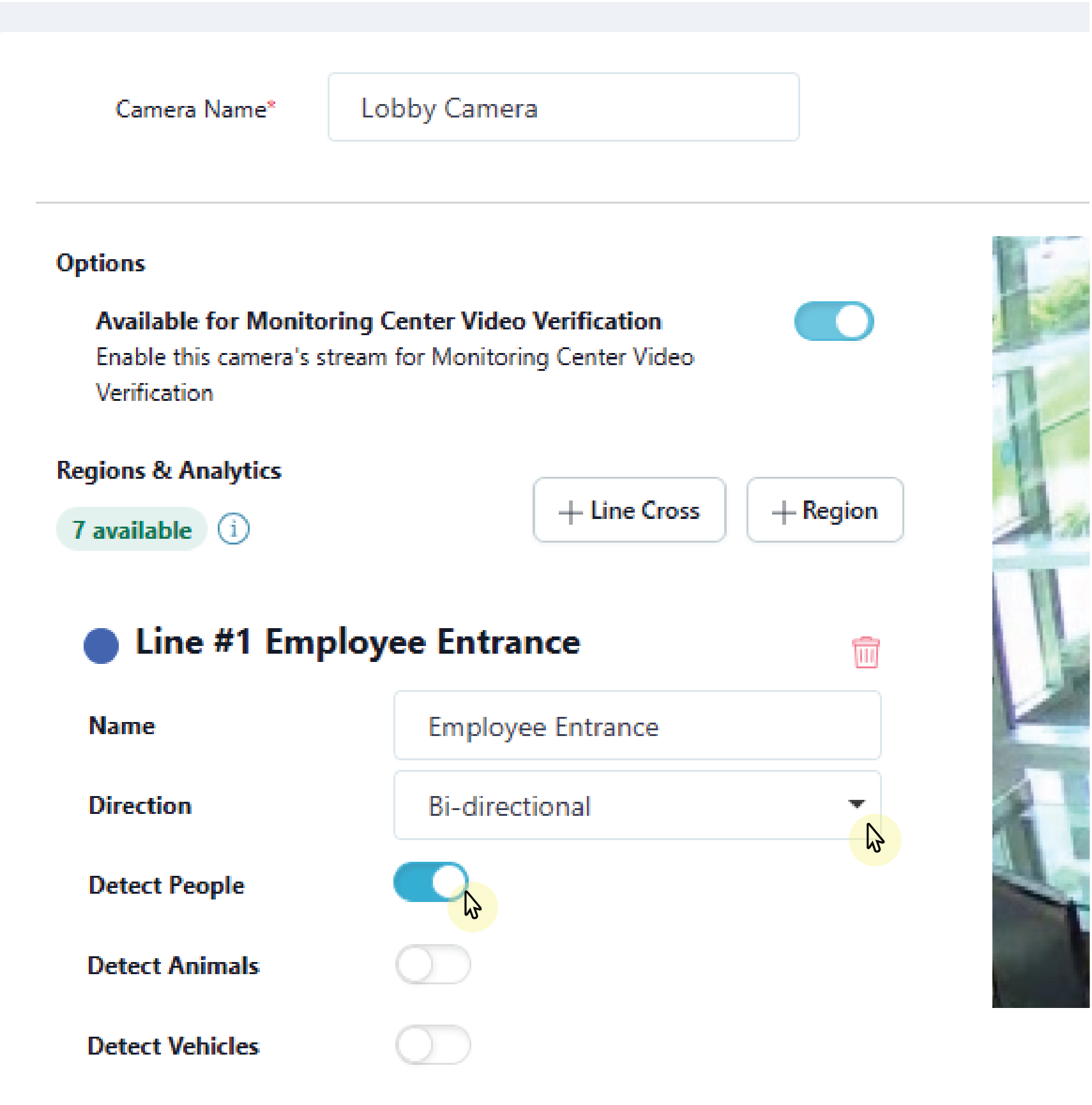
In the drop-down menu, select one of the following directions you want to monitor if a person, animal, or vehicle moves in a direction that is a part of a programmed region:
-
Enter—Motion has to cross the line in the direction of the arrow.
-
Exit—Motion has to cross the line in the direction of the arrow.
-
Bi-directional—Motion can cross the line in either direction.
-
-
Select Display Regions if you want the configured detection lines to show up on event previews in Virtual Keypad.
.png?cb=ae7a6d6637ce823c6506ca3b5f4192e2)
-
To add additional line crosses, repeat steps 1-3. Select Save to apply changes and exit the Edit Camera page. This saves the line crosses and any camera adjustments made previously.
-
To configure end user settings, refer to Virtual Keypad Setup for more information.
Create a Camera Alarm Zone for Regions and Lines
-
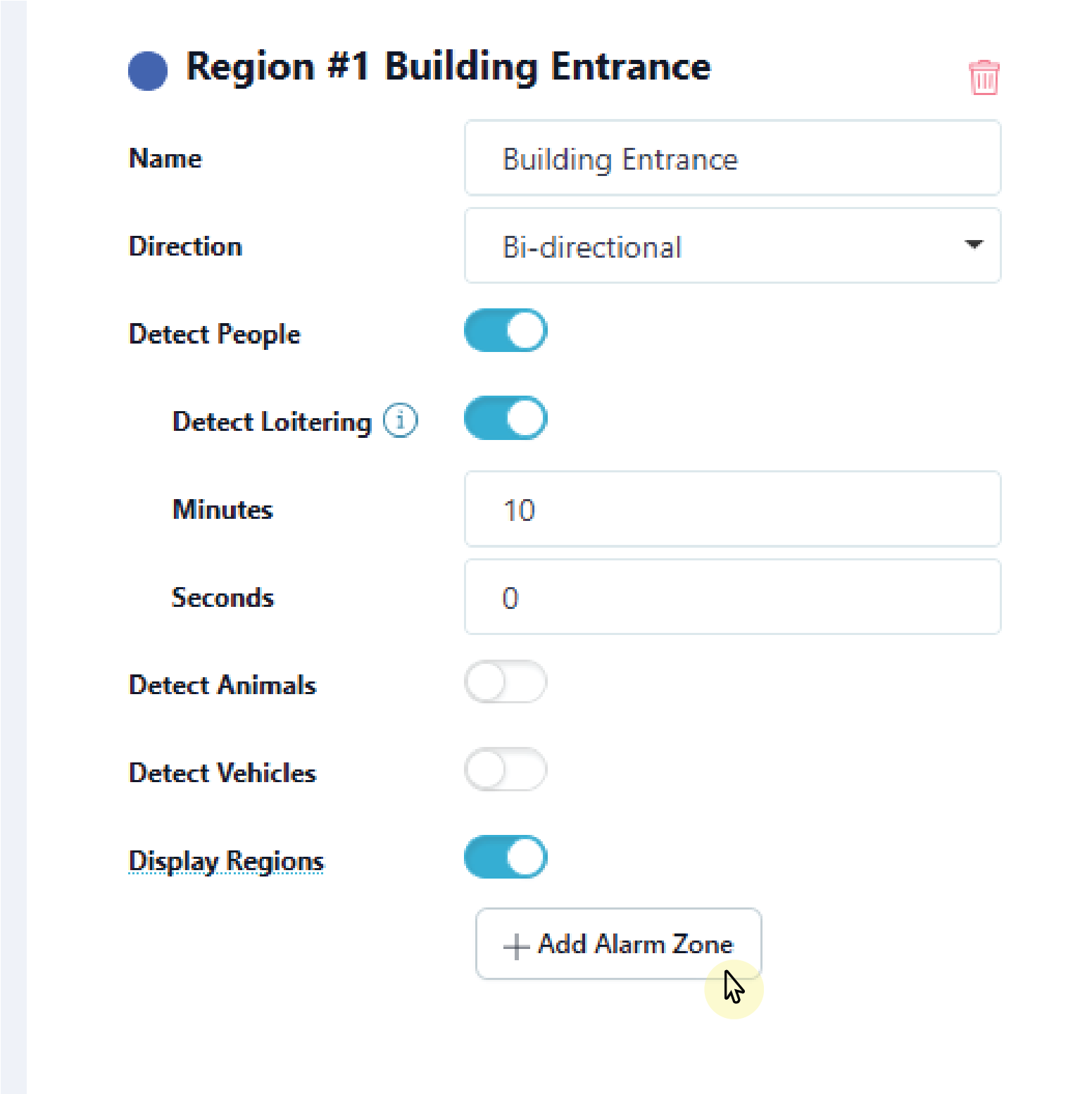
To tie a detection region or line to a panel zone, select + Add Alarm Zone. This expands into customizable zone options.
Note: If any camera detection region or line is tied to a panel zone, then all detections for that camera only record when the zone is active.
-
Give the zone a Name.
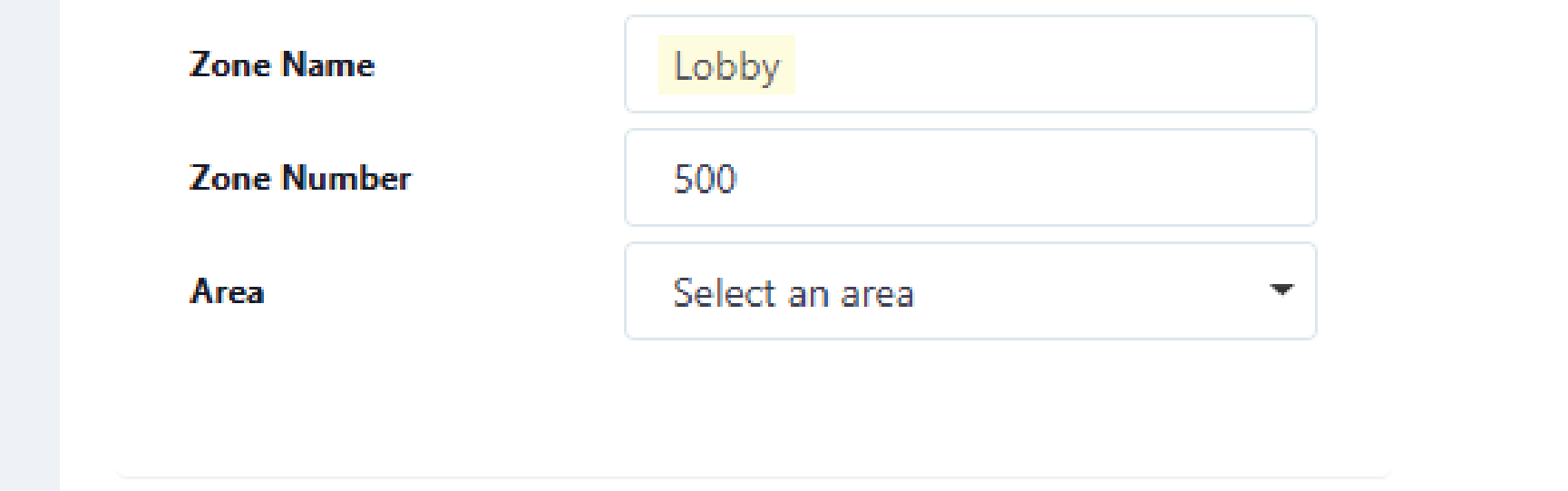
-
The zone number automatically populates with the next available zone number in panel. You may assign a different zone number, if desired. Usable zones are 500-999 for XR Series Control Panels and 500-599 for XT75 Control Panels.
Note: Zones cannot be assigned to an AX-Bus.
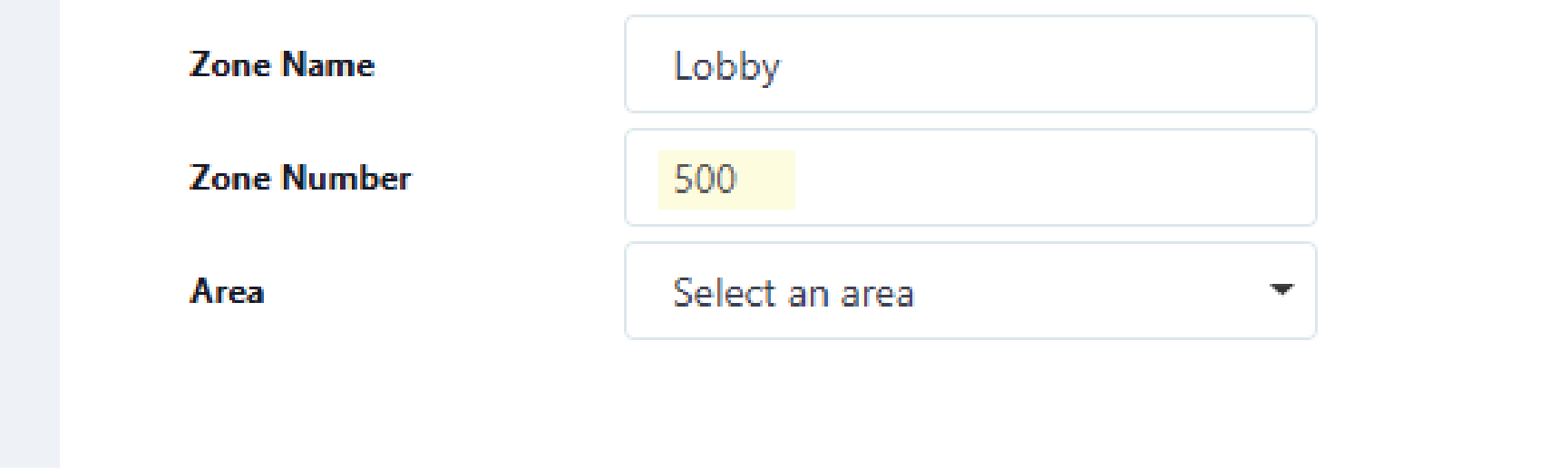
-
Assign the zone to an Area by selecting the drop-down menu.
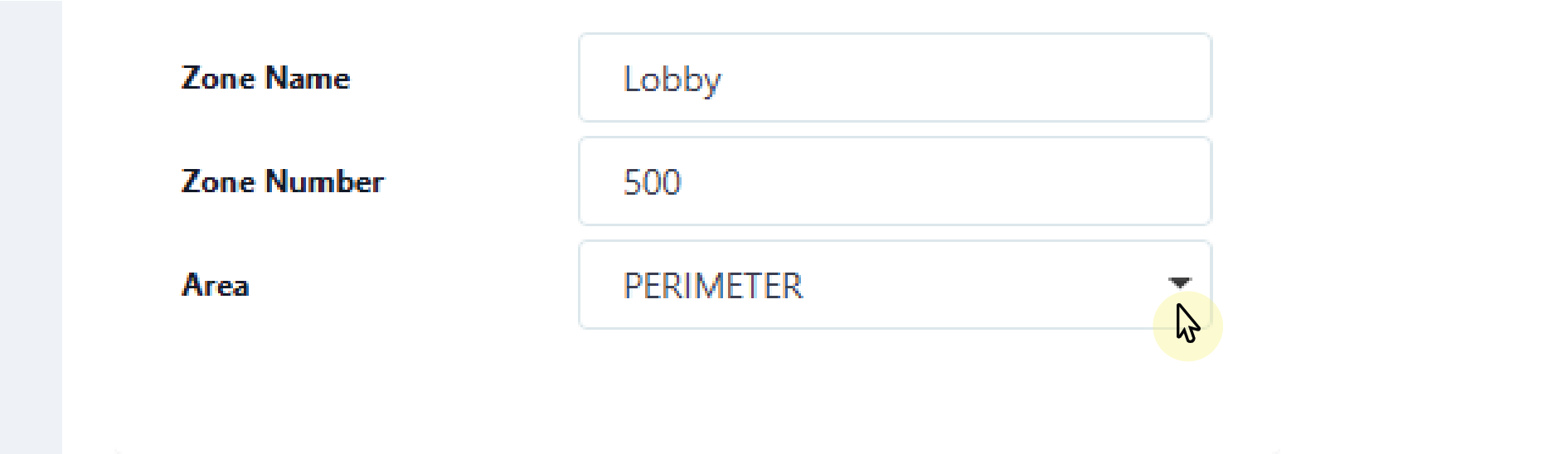
-
To add additional detection regions, repeat steps 1-4. Select Save to apply changes and exit the Edit Camera page. This saves the detection regions and any zones tied to them, as well as any camera adjustments made previously.
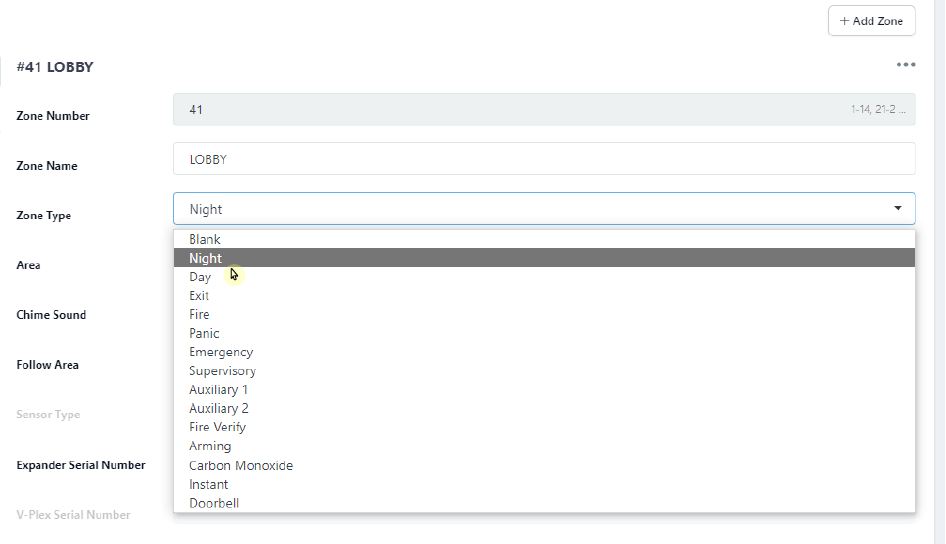
Note: All zones are programmed as a Night Zone by default. To edit zone programming, refer to Edit a Zone below.
Add an Audio Device
There are two types of audio devices that can be added to the XV Gateway:
-
Auto-Discovered Audio Devices: The audio devices are automatically discovered if they exist on the same subnet as the XV Gateway.
-
Manually Added Audio Devices: The audio devices are outside of the XV Gateway subnet and can be manually added with the device’s IP Address.
Refer to the sections below for details on how to add both types of audio devices to an XV Gateway.
Auto-Discovered Audio Devices
-
In the XV Camera with AlarmVision® section, select + Device to XV Gateway to add an audio device to an XV Gateway.
-
If not already on, toggle Auto Discover Devices ON. Audio devices that already exist on the same subnet as the XV Gateway automatically display in the Audio Devices list.
-
Find the audio device you want to add. Select More. Select Add as Audio Device to add the audio device to the XV Gateway.
-
You will be prompted for a username and password. Enter the information, then select Send.
-
Select Close.
Manually Added Audio Devices
-
Audio devices that are not connected to the same subnet as the XV Gateway need to be manually added. To manually add a camera, toggle Auto Discover Devices off or select Add Manually.
-
Select ONVIF from the drop-down menu and enter the corresponding information. Then, select Add.
-
Once you have added the audio device to the XV Gateway, select Close.
Rename an Audio Device
To change the audio device name, go to Location Groups and select the Location Name, then follow these steps:
-
In XV Gateway with AlarmVision®, select the audio device you want to edit.
-
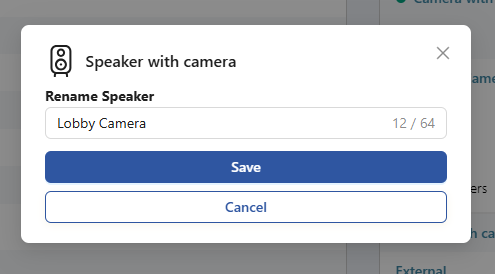
A modal will appear, prompting you to Rename Audio Device. Enter the new name of the camera.
-
Select Save.
Additional Information
Change Camera Name and Description
To change the camera name and add a description, go to Location Groups and select the Location Name, then follow these steps:
-
In XV Gateway with AlarmVision®, select the camera you want to edit.
-
In Camera Settings, locate Camera Name. Select the box and enter the new name.
-
Locate Camera Description. Select the box and enter a short description of the camera. Camera Descriptions are optional.
-
Select Save.
Edit a Zone
To edit a zone, go to Location Groups and select the Location Name.
-
Navigate to Programming for the selected location.
-
Navigate to Zone Information and locate the zone that needs to be edited.
-
Select the drop-down menu next to Zone Type. This displays the zone types that can be assigned.
-
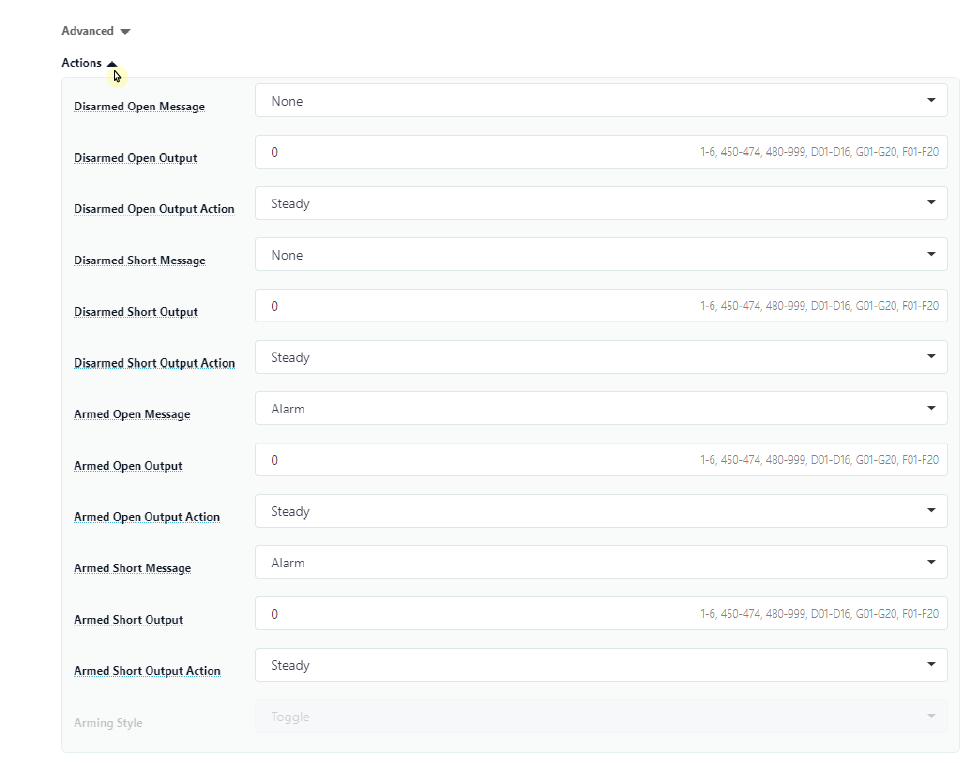
Select the drop-down menu next to Zone Actions. This displays the outputs that can be assigned.
-
When done editing, select Send All Changes in the top right corner of the screen to save the changes and send them to the panel.
Delete a Detection Region, Line, and Zone
To delete a detection region or line and a zone tied to it, navigate to Location Information for the selected location.
-
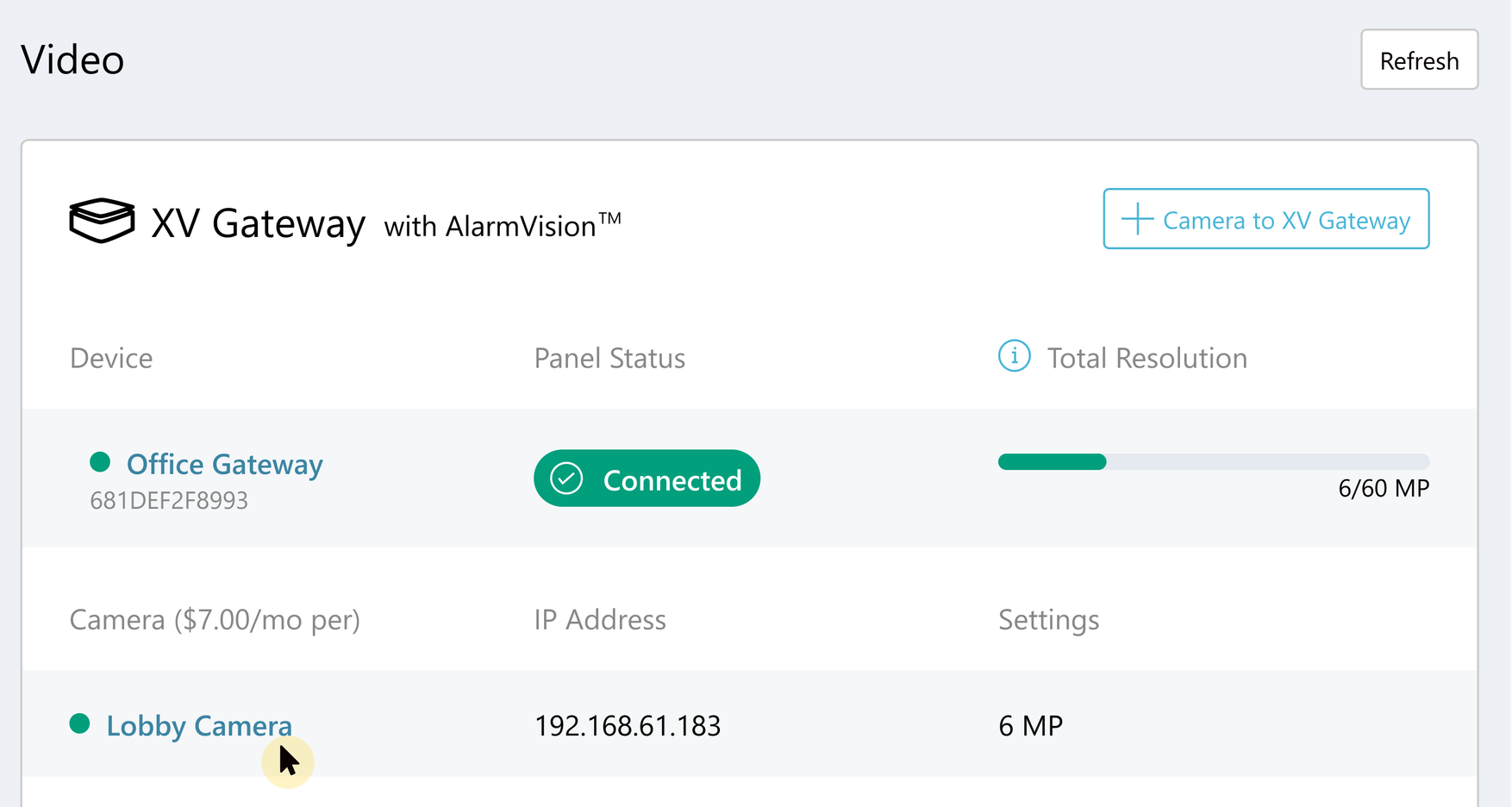
Select the camera that is tied to the detection region or line.
-
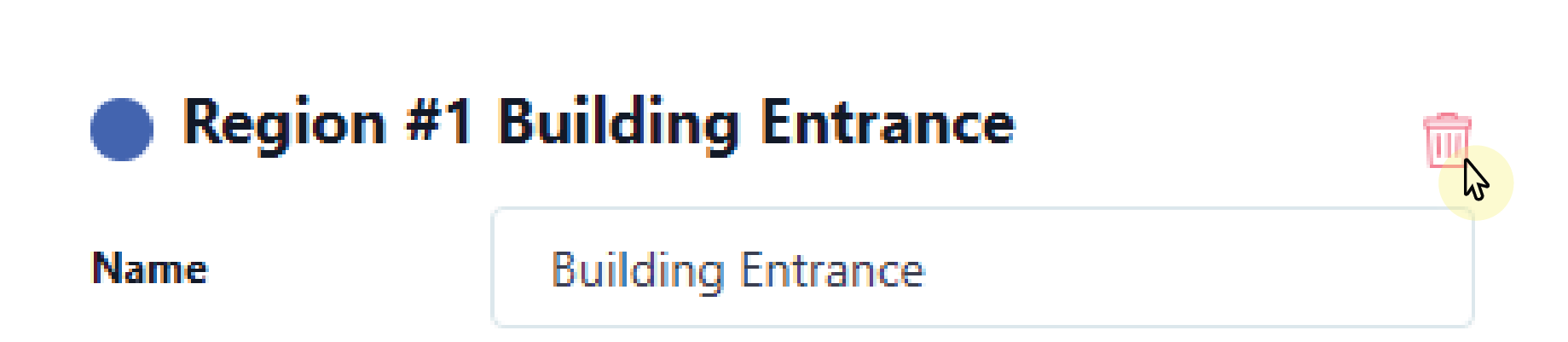
Select the Trash Can icon next to the name of the detection region or line.
-
Select Save. This deletes the detection region or line and any zone tied to it.
Note: Zones should NOT be deleted from Zone Information. If you attempt to delete a zone this way, a message appears explaining that the panel’s detection region will not properly communicate with the panel.
Disable a Camera
To disable a camera, navigate to Location Information for the selected location.
-
Select the camera you want to disable.
-
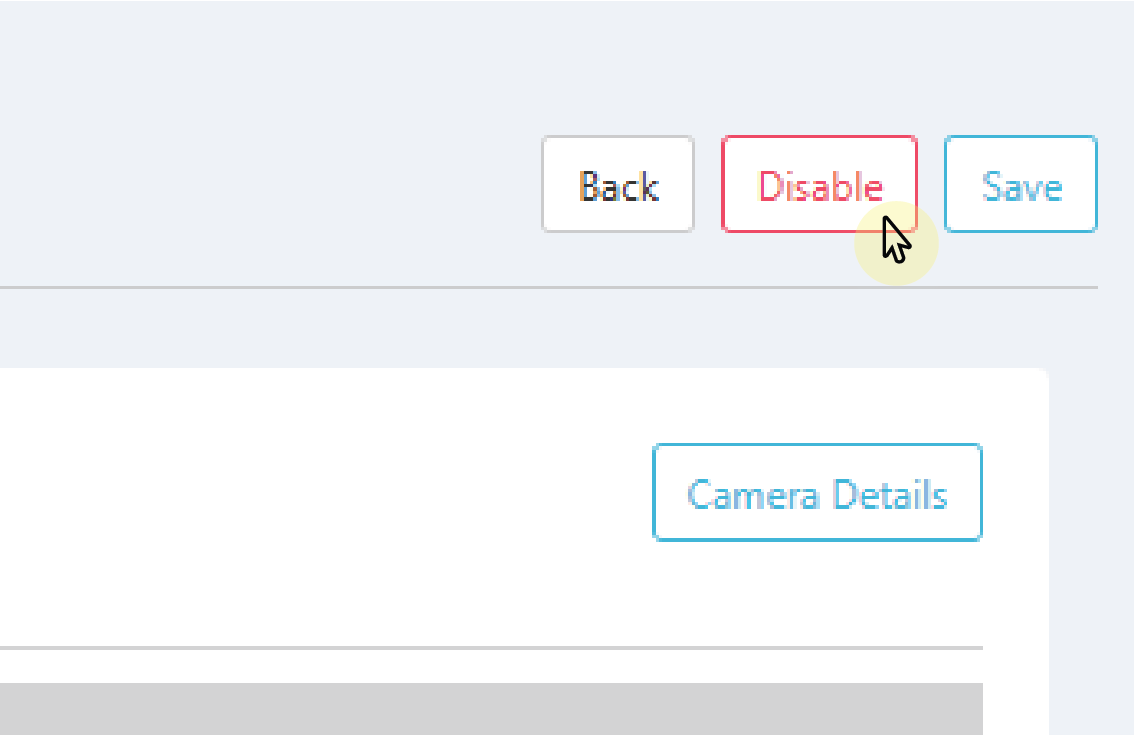
Select Disable in the top right corner to remove the camera from the XV Gateway.
Note: Disabling the camera deletes all detection regions, lines, and zones tied to the camera.
-
Select Save. The camera is removed from the XV Gateway with AlarmVision® section.
Add Camera Window Additional Settings
Before proceeding, navigate to the Add Cameras window. On the Location Information page, select + Camera to XV Gateway.
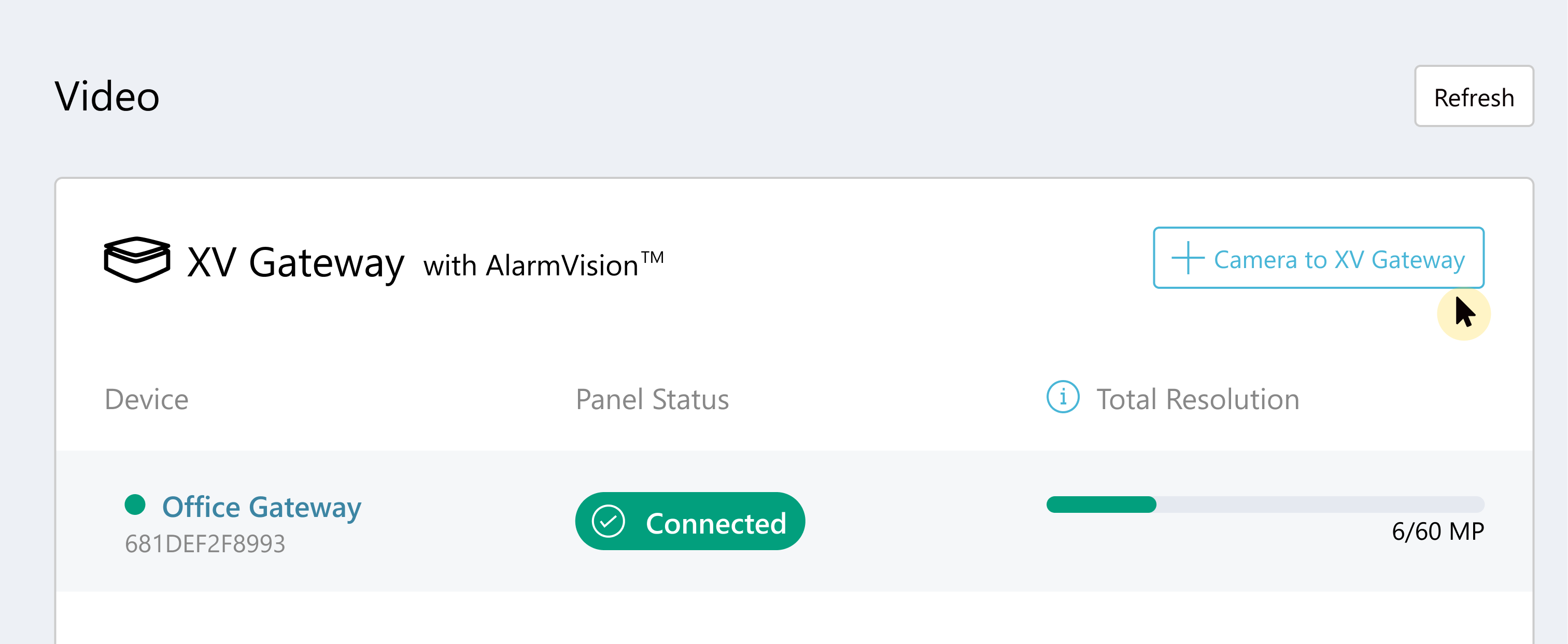
In the Add Cameras window, select the ellipsis menu in the top right corner of each camera row to display the Hide Camera, Remove Camera, and Enter Password options.
Hide Camera
This option disables a camera and moves it to the Hidden Cameras list at the bottom of the window. To unhide a camera, select Unhide Camera or Enable. Enabling a hidden camera removes it from the Hidden Cameras list and adds it to the XV Gateway to begin streaming.
Remove Camera
If you made changes to your camera network, this option disables and removes the original auto-discovered camera from Dealer Admin. Any cameras on the same subnet as the XV Gateway are automatically discovered and added to the camera list.
Note: Removing a camera deletes all detection regions, lines, zones, and video actions tied to the camera.
Enter Password
If a user has changed the camera password, the XV Gateway requires the updated password to access the video stream. This option sends the camera password to the XV Gateway and restores video streaming.
Note: This does not change the camera’s password; it only re-sends the camera’s password to the XV Gateway to restore the video stream when the camera’s password is changed.
.png?cb=3106c7005142253331687e3d19b068fa)
Re-add a Deleted Camera
If you want to re-add manually-added RSTP or ONVIF cameras that were deleted, select + Add Manually at the top of the window.
Ordering Information
XV Gateway Models
XV-24: 24 MP Video Analytics-Enabled Motion Detector
XV-60: 60 MP Video Analytics-Enabled Motion Detector
XV-96: 96 MP Video Analytics-Enabled Motion Detector
Certifications
NDAA Compliant
Specifications
Supports ONVIF and RTSP cameras
One TB internal storage
Up to 24, 60, or 96 MP Processing