

Security Command is a centralized, cloud-based platform designed for end-users, combining keypad and panel programming features with helpful tools like location analytics. Security Command allows you to quickly program locations, run reports, update your panels remotely, manage your companies, and much more.
For help with other products like Virtual Keypad, visit the DMP Help Files page.
Sign In
Go to Security Command. Enter your Email and Password, then select Sign In.
Use Single Sign-On
SSO allows you to log in to multiple applications with one set of credentials. To use SSO, complete the following steps:
-
Go to SecurityCommand.com
-
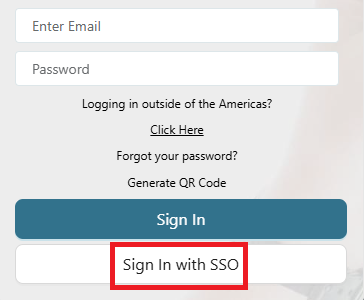
Select Sign In with SSO.
-
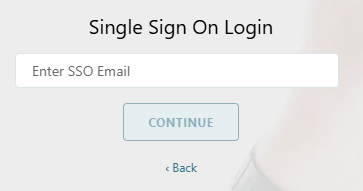
Enter your SSO Email, then select Continue.
-
You are navigated to your company login page. Enter your email and password.
You are automatically returned to Security Command and successfully logged in.
Reset Your Forgotten Password
Note: Resetting your password is not available for SSO passwords. If you need to reset your SSO password, contact your Administrator.
On the login page, select Forgot Your Password. Enter your Email address, then select Reset Password. An email is sent containing an auto-generated password.
Sign Out
To sign out of Security Command, select your avatar and select Sign Out. You are signed out and automatically redirected to the login page.
Edit Your Account Settings
To change account settings like your username and email or to set up Two-Factor Authentication, select the Avatar icon and go to Settings.
Change Your Password
To change your password, complete the following steps.
-
Select the Avatar icon and go to Settings.
-
Go to Options and select Change Password.
-
Enter your current password.
-
Enter your new password, then re-enter it to confirm.
-
Select Save.
Set Up Two-Factor Authentication
Personnel can opt themselves in to Two-Factor Authentication or Administrators can require it. To require personnel to use Two-Factor Authentication, enable it in a custom role then assign that role to personnel. For more information, refer to Add, Edit, and Delete Custom Roles.
To set up Two-Factor Authentication for your account, complete the following steps.
-
Select the Avatar icon and go to Settings.
-
Go to Options and select Two-Factor Authentication.
-
Select how you want security codes sent to you. If you select Text, enter your phone number. If you select Email, the email you logged in with will automatically be selected.
-
Enter the code sent to your phone number or email.
-
Select Confirm.